Create a Blackout Poem Using Procreate

Step 1: Import Your Text into Procreate
If you're using a physical text, start by taking a photo of it. Quick tip: If you've got an older iPad and want a better-quality image, use your iPhone's likely superior camera, then Airdrop the image to your iPad. Now, if you prefer working with a digital text, head over to your Kindle App or an online publication and take a screenshot.
Importing your text into Procreate is easy-peasy: Open the Procreate app and tap the (+) button at the top right for a new blank page. A column pops up offering different screen sizes. You can choose one from the list or create your own canvas size—I usually go for 1620 pixels x 2160 pixels, but there's no strict rule for this. Next, tap the wrench button at the top left for 'Actions.' Select 'Insert a photo' and choose your text's image from your photo library.
Step 2: Create a New Layer
In ocate the layers icon—it's that nostalgic symbol resembling the slightly overlapping squares we'd all doodle along the margins of our worksheets during those bored-in-class moments in middle school. You know, those doodles that sometimes turned into funky cubes? Or maybe that was just me?
Anyway, find that icon, usually nestled at the top right corner of the screen. Once spotted, tap on that icon, located at the top right of the screen. Then, hit the (+) button to create a new layer. It will say, "Layer 2" which is where you'll create your blackout poem.
Step 3: Use the Masking Tool
After making your new layer, tap on it. A column of options will show up on the left side. Find the masking tool—it's called 'Mask,' not 'Clipping Mask.' When you pick it, your layer splits into two parts: one named 'Layer Mask' and the other 'Layer 2.'
Here's the cool part about the masking tool: it hides parts of 'Layer 1' (that's your original text) without actually erasing anything permanently. This means you can reveal the original text whenever you want, if needed.
Step 4: Check Your Settings
Exit the layers area by tapping anywhere on the main screen, then grab your Apple Pencil. Next, tap the brush icon. Choose 'Painting,' then pick the 'Round Brush' from the options. Check the opacity—it's on the lower bar at the right side of the screen—make sure it's set to 100%. Adjust the size of your brush using the upper bar on the right.
Step 5: Start Masking
Now, let's pick the color black from the color wheel. Here's a neat trick: when you use black with the masking tool, it covers up the words you don't want in your poem. And if you ever change your mind and want to see those hidden words again for more options, you can use white to reveal them.
Step 6: Reveal the Words for Your Poem
After covering up the words you think don't fit in your poem using a black brush, you might want to tweak things a bit for clarity. For instance, adding a verb or noun that you had covered up earlier could be worthwhile to badd back in. To do this, switch your brush color to white. Using the white brush reveals specific words or phrases in the source text. You can adjust the brush size to uncover just one or two words or go bigger to reveal more at once. You might find that you don't need to add any words back, but sometimes, you'll discover words that really improve your poem.
Step 7: Finalize and Save
Once your blackout poem feels just right, it's time to save your masterpiece. Procreate saves everything automatically, but I prefer to be extra safe and export each poem. Here's how: Tap the gear icon at the top left corner of the screen, then hit the share icon. Choose your preferred file type—JPEG or PDF, for instance. I usually opt for "Save Image" to store the poem in my camera roll.
Step 8: Transforming the Poem (Optional)
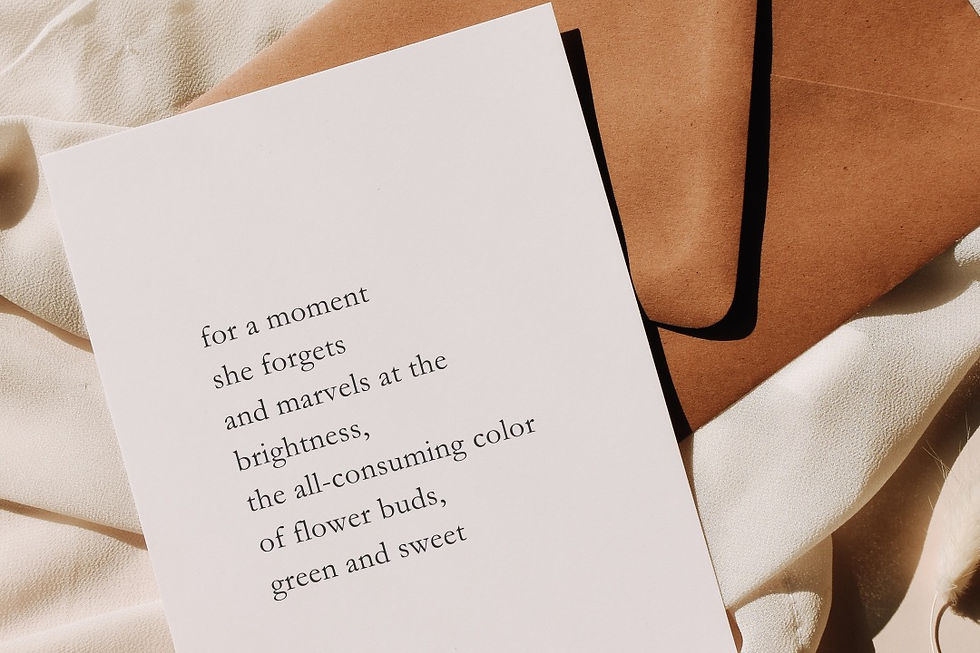
If you're like me and you enjoy the classic poem look, then you can transfer your blackout poem into a regular format using Canva. Here's what I do: I open Canva and copy the words from the saved image in my camera roll. I type the words from my blackout poem onto a Canva template, giving it that traditional poem layout you might prefer. That's how I created the image you see at the start of this blog post. But hey, if you love the raw, blackout style, feel free to skip this step!
Happy Creating!
Remember, creating blackout poetry involves a lot of experimenting and creativity. Don't be afraid to play around with different techniques and styles to achieve the effect you want. And if you try out this process and you find that you'd like to post your creation in the comments, please do!
Comments